How do I add a certificate to my LinkedIn profile?
On LinkedIn, add the Licenses & certifications section to your profile and fill in the certificate's name, the issuing organisation, the issue date, the credential ID and the credential URL. If the certificate came from Certific, the Add to LinkedIn profile button on its page fills in that form for you, on a computer and on a phone with the LinkedIn app.
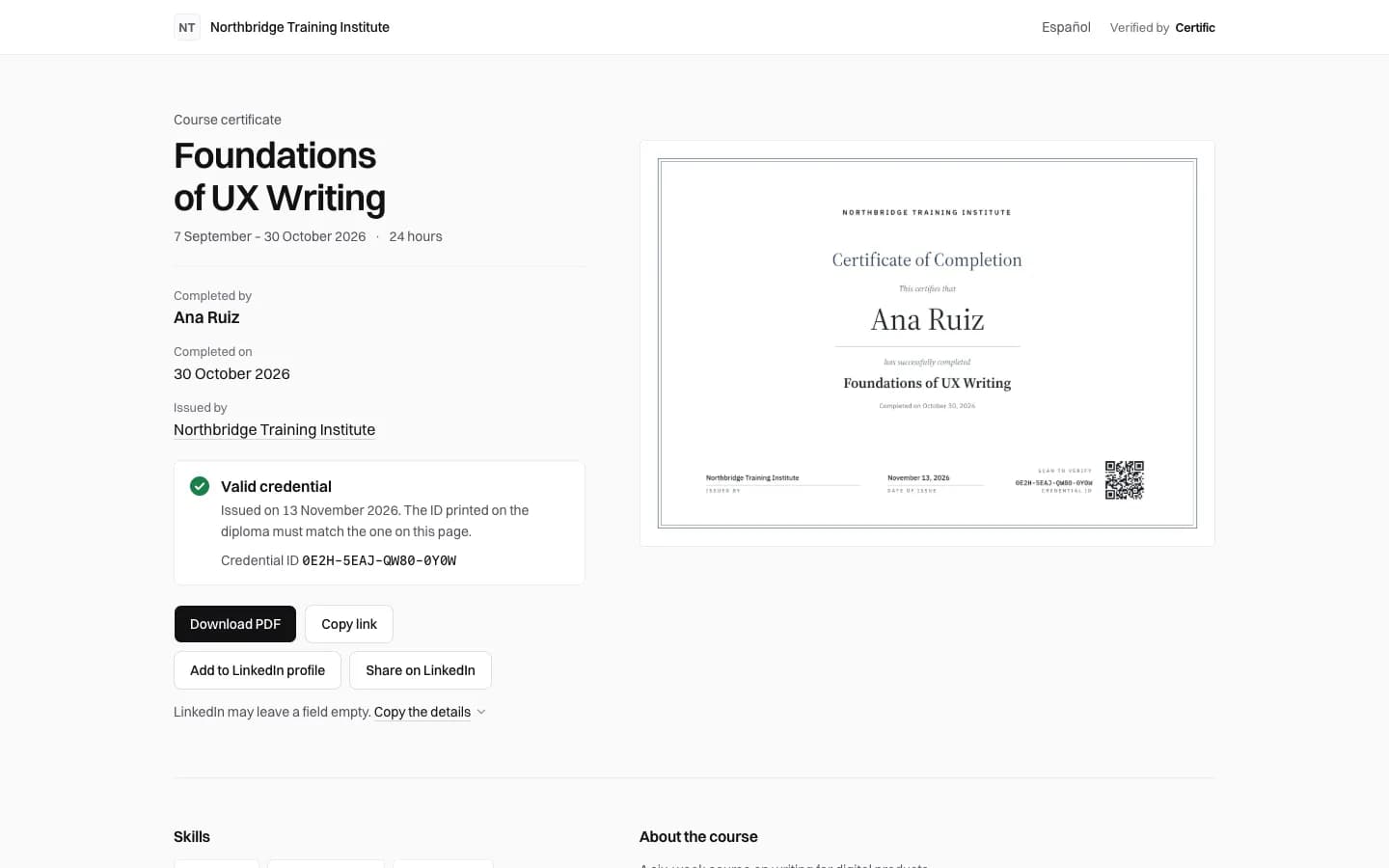
The fields LinkedIn asks for
- Name: the course title, as it appears on the certificate.
- Issuing organisation: the school or training centre that issued it.
- Issue date: the month and year on the certificate.
- Credential ID: the ID printed under the QR code, such as FDKE-YVNT-7W55-B67H.
- Credential URL: the address of the certificate's page. Leave the expiration date empty; Certific certificates do not expire.
From a Certific certificate
- Open your certificate's page from its email or its QR code.
- Choose Add to LinkedIn profile. On a computer, LinkedIn opens its form in a new tab, filled in; sign in if it asks.
- Check each field and save.
- If LinkedIn leaves a field empty, choose Copy the details on the certificate's page and copy it from there.
Share it as a post
Share on LinkedIn opens LinkedIn's share box with the certificate's address, and the page gives LinkedIn the diploma's image for the preview. The certificate's page also suggests a short post you can edit and copy.
Why the credential URL matters
It lets anyone who reads your profile check the certificate: the link opens its page with your name, the course, the issuer and the current status.