How is a QR code on a certificate verified?
Scan the QR code with a phone camera and open the link it shows: it leads to the certificate's page on the issuer's verification site. Check that the address is one you trust, that the details match the paper, and that the ID on the page is the same as the one printed under the QR code.
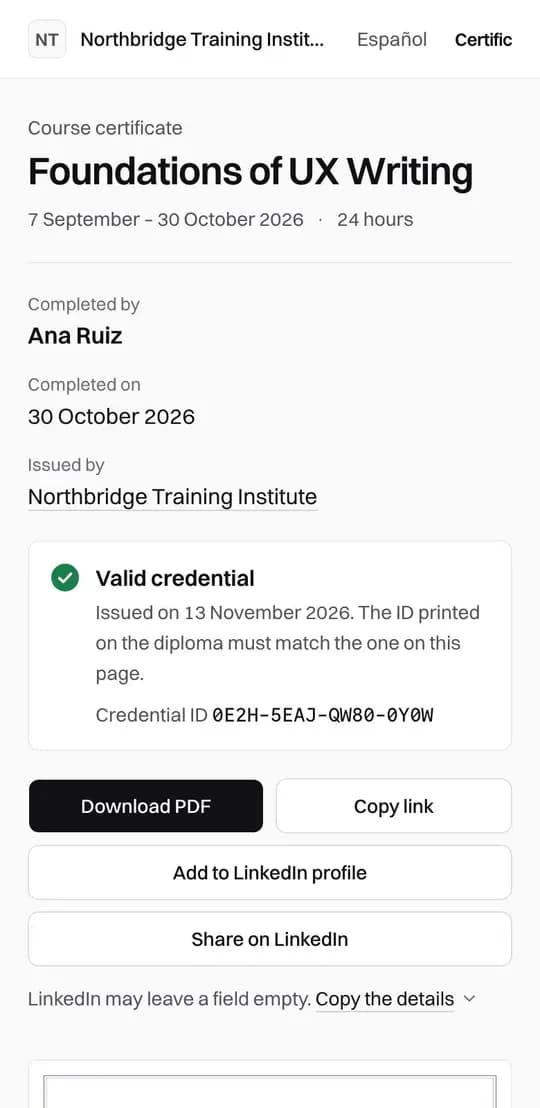
Step by step
- Point the phone's camera at the QR code. Most phones show the link without any app.
- Look at the address before opening it. On a Certific certificate it starts with certific.io/c/ followed by the credential ID.
- Open the page and compare the holder's name, the course and the issuer with the certificate.
- Compare the credential ID on the page with the one printed under the QR code. They must be identical.
- Read the status. A valid certificate says so; a revoked one says it is no longer valid and since when.
Why the printed ID matters
A QR code can be copied onto another document. The ID printed beside it ties the paper to the record: if a real QR code were pasted onto a fake certificate, the name or the ID on the page would not match.
No QR code at hand
Type the address printed on the certificate into a browser, or certific.io/c/ followed by the credential ID. Lower-case letters and hyphens are accepted.
What the page confirms
The page confirms that the issuer recorded this certificate and shows its current status. It does not judge the course itself; for that, look at the issuer. When the page shows the Verified issuer badge beside the school's name, Certific has checked, by hand, a document that shows who the school is.